
TUTORIALS

How to Change Backup Location?

10/26/2017

42020

When you sync iPhone/iPad/iPod using iTunes, it will back up your iDevice’s data automatically. The default backup location for iTunes is in C Disk, that’s the reason why the storage space of C disk becomes less and less.


At present, Apple doesn’t provide an option for us to change the backup path, but this tutorial aims to teach you the method to change backup location.


As shown below, if you backup your iDevice using 3uTools, you can directly choose the backup path you want.
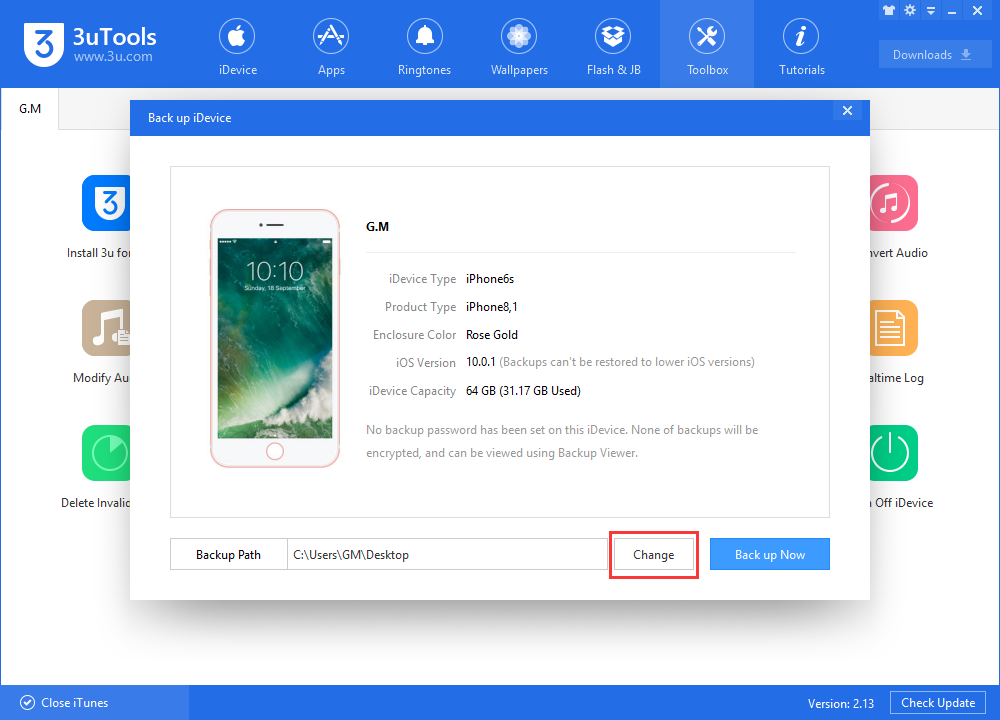

How to Change Backup Location?


If you backup your iDevice using iTunes, please follow the steps below to change the backup path.


Step1: Create a new folder in another disk. For instance, create a folder named “iPhone 5.0.1 backup” under D disk.


Step2: Copy all the folders and files of iTunes default backup path, then paste them to the folder “iPhone 5.0.1 backup” you just created.


Step3: Delete the original backup folder and all child folders.


Step4: Find and launch Command Prompt or Windows PowerShell(Admin)from Windows Start Menu. Then enter the following command “mklink /D "C:\Users\MagicSun\AppData\Roaming\Apple Computer\MobileSync\Backup" "d:\iphone5.0.1backup"” and end up with the enter key.


A mirrored folder Backup should be displayed under the folder MobileSync after executing the command above. From now on, when you sync your iOS devices, iTunes will save iDevice’s data to the folder you created.


Windows
Mac OS
iOS
Linux
3uTools
Win 64-bit For this device
V9.0 2025-11-11
Download
Win 32-bit For this device
V9.0 2025-11-11
Download
3uTools
Intel Chip How to Identify Chip Type
V9.0 2025-12-02
Download
Apple Chip
V9.0 2025-12-02
Download
How to Identify Chip Type
1.  Click the Apple icon in the top-left corner of the screen and select About This Mac.
2.  Check the Processor or Chip field to determine if it is "Intel" or "Apple".
Please use the 3uTools PC client to install the iOS client:
1、 Install either the Windows or Mac version of 3uTools on your computer
2、 Open the PC client and connect your device to the computer via USB cable
3、 After the connection is successful, wait for the computer to automatically install the mobile app for the device, or locate “Install Mobile App” on the computer and manually click to install.
3uTools
deb file
V3.01 2025-11-20
Download
rpm file
V3.01 2025-11-20
Download
Windows
Windows
iOS
iOS
Android
Android
TV
TV
3uAirPlayer
Win 64-bit For this device
V6.0.2 2025-11-19
Download
Win 32-bit For this device
V6.0.2 2025-11-19
Download
iOS Device Mirroring (No App Required)
1、 Install 3uAirPlayer on the Windows PC
2、 Open Control Center and select Screen Mirroring
3、 From the list, choose your PC to start mirroring
4、 Or connect your iOS device to the PC via USB to begin mirroring
Scan to get "3uAirPlayer" App
3uAirPlayer TV V1.0.18
2025-11-28
TV System Requirements: Android 7.0 or later
Download the TV installation package, copy it to a USB drive, insert it into your TV or set-top box, then select the file from the home screen to install.



