
TUTORIALS

How to Set up Parental Controls on iPhone and iPad?

07/12/2017

6468

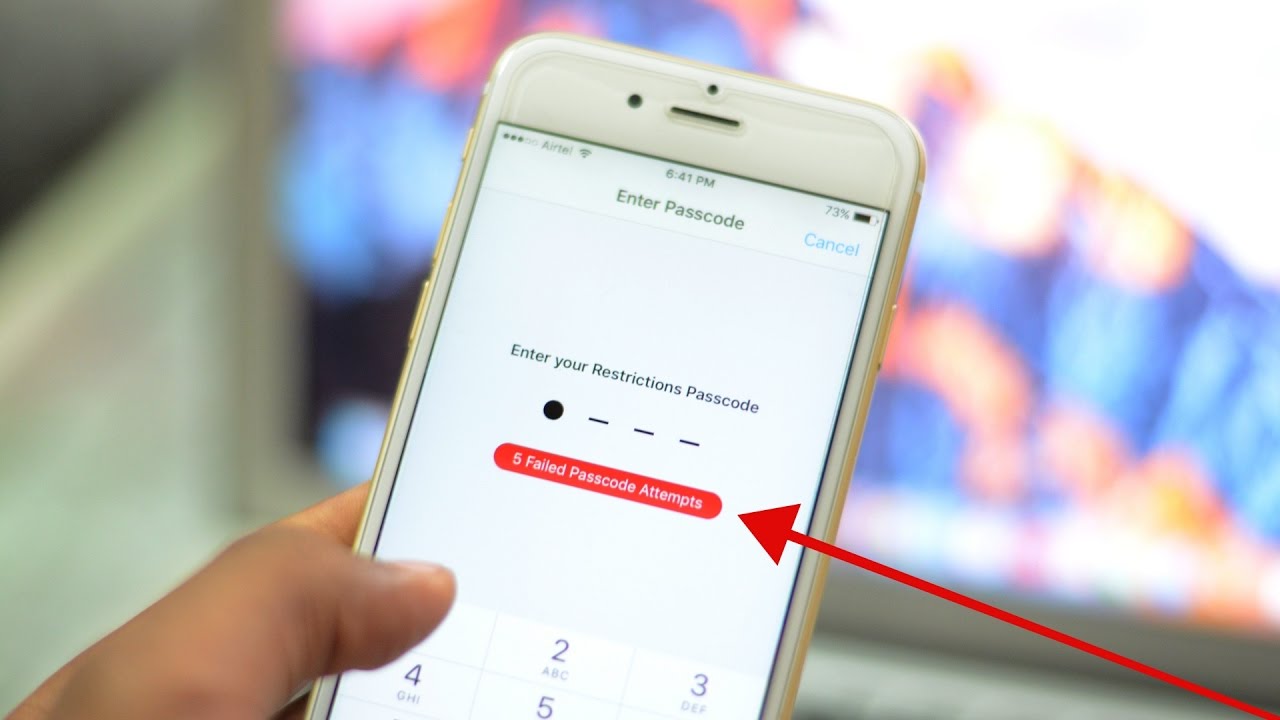
If you have recently purchased or are planning to buy an iOS device for your child, parental controls are key to their safety. Macs have a dedicated feature called Parental Controls, but on an iPhone or iPad, the feature you will use is called Restrictions. For details on how to enable the feature as well as use it, just follow these simple steps.

How to Set up Parental Controls on iPhone and iPad?


Enable the Restrictions Feature:


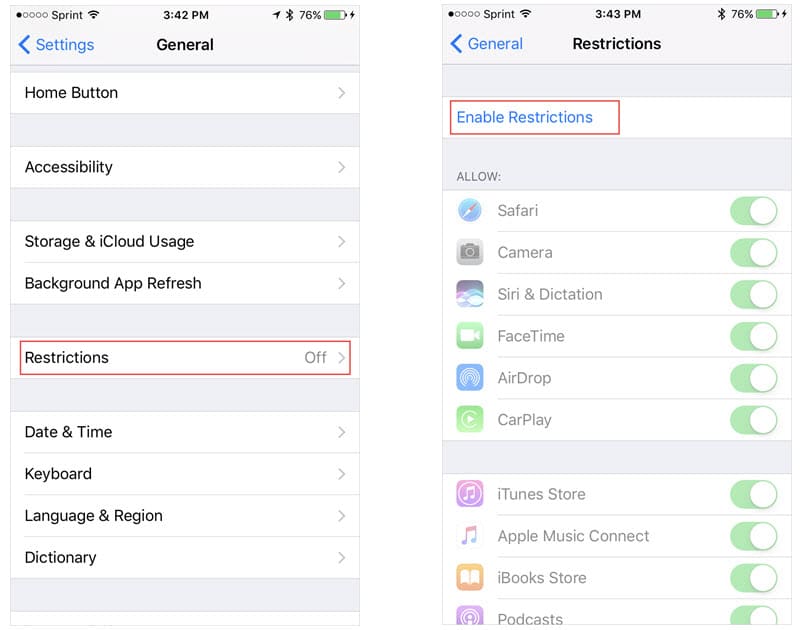
Step 1: Open the device settings.


Step 2: Tap General and then Restrictions.


Step 3: Tap Enable Restrictions.

How to Set up Parental Controls on iPhone and iPad?


Step 4: Create a passcode for Restrictions in order to adjust the settings or disable the feature.


Configure the Restrictions:


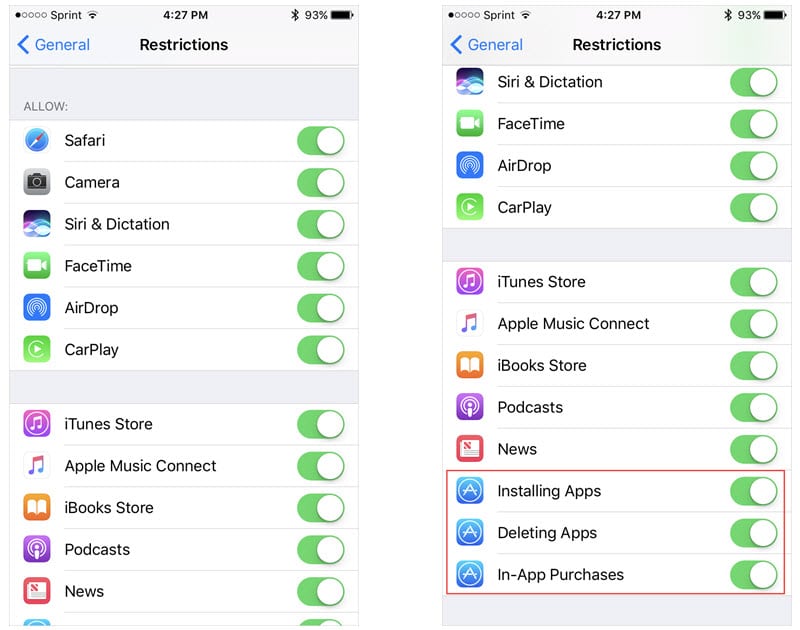
Allow – Select Apps and Services to Allow


The first section of allowable apps and services is for default apps installed on your device. This includes items like Safari, FaceTime, and the iTunes Store. Just slide the button from green to gray to disable the ones you want to disallow.


You will also notice three settings for allowing the installing and deleting of apps along with in-app purchase ability. So, be sure to disable these as needed.

How to Set up Parental Controls on iPhone and iPad?


The Allowed Content area includes eight different categories including movies, TV shows, and websites. Each category has different settings, so you should review each one separately.


If you forgot the passcode, you can refer this How to Easily Get Back iPhone Restrictions Passcode?


Source: iphonehacks

Windows
Mac OS
iOS
Linux
3uTools
Win 64-bit For this device
V9.0 2025-11-11
Download
Win 32-bit For this device
V9.0 2025-11-11
Download
3uTools
Intel Chip How to Identify Chip Type
V9.0 2025-12-02
Download
Apple Chip
V9.0 2025-12-02
Download
How to Identify Chip Type
1.  Click the Apple icon in the top-left corner of the screen and select About This Mac.
2.  Check the Processor or Chip field to determine if it is "Intel" or "Apple".
Please use the 3uTools PC client to install the iOS client:
1、 Install either the Windows or Mac version of 3uTools on your computer
2、 Open the PC client and connect your device to the computer via USB cable
3、 After the connection is successful, wait for the computer to automatically install the mobile app for the device, or locate “Install Mobile App” on the computer and manually click to install.
3uTools
deb file
V3.01 2025-11-20
Download
rpm file
V3.01 2025-11-20
Download
Windows
Windows
iOS
iOS
Android
Android
TV
TV
3uAirPlayer
Win 64-bit For this device
V6.0.2 2025-11-19
Download
Win 32-bit For this device
V6.0.2 2025-11-19
Download
iOS Device Mirroring (No App Required)
1、 Install 3uAirPlayer on the Windows PC
2、 Open Control Center and select Screen Mirroring
3、 From the list, choose your PC to start mirroring
4、 Or connect your iOS device to the PC via USB to begin mirroring
Scan to get "3uAirPlayer" App
3uAirPlayer TV V1.0.18
2025-11-28
TV System Requirements: Android 7.0 or later
Download the TV installation package, copy it to a USB drive, insert it into your TV or set-top box, then select the file from the home screen to install.




