
TUTORIALS

How to Switch Graphics Card on MacBook with One Step?

07/18/2017

10564

Problem Description


A MacBook user reported that he have met such an issue that the independent graphics card was forced to open while he using his MacBook, and then the electricity of his MacBook is consumed so fast. But actually he didn’t use the graphics card. how to fix this problem?


Solution


We’re able to solve this problem by entering command to terminal window so as to change the use of the graphics card. But you need to enter a long command and password manually every time, meanwhile, it is hard to modify.
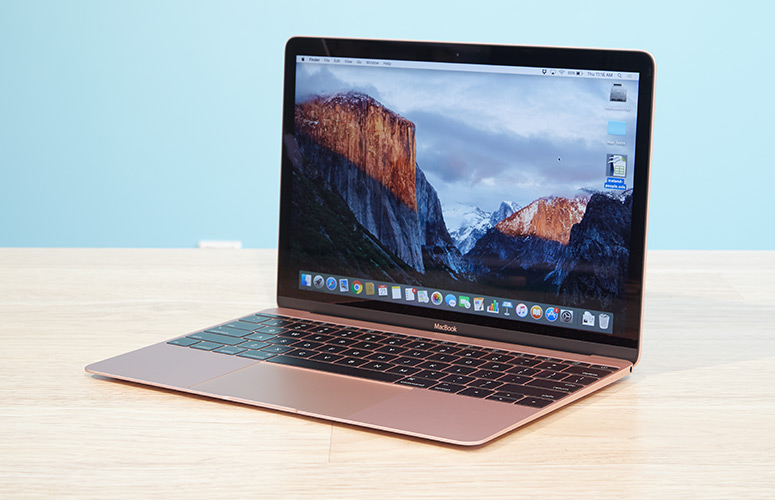

How to Switch Graphics Card on MacBook with One Step?


sudo pmset -a GPUSwitch 0 //(Force to use integrated graphics card)

sudo pmset -a GPUSwitch 1 //(Force to use independent graphics card)

sudo pmset -a GPUSwitch 2 //(Auto Switch Mode)


Step1: Click here to download this program and then unzip it . Open the files in src using Xcode or text editor. Modify the code in the last few lines of the text according to the tips.
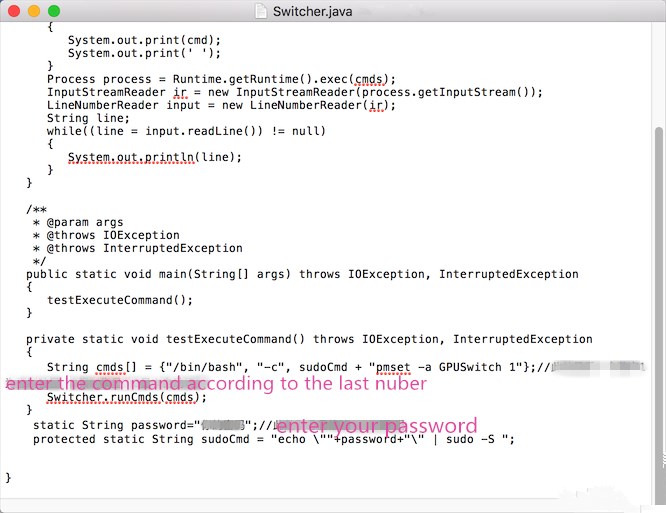

How to Switch Graphics Card on MacBook with One Step?


Step2: Open the terminal, enter cd Desktop and press Enter.


Step3: Enter cd src and press Enter.


Step4: Enter javac -d ../bin Switcher.java and press Enter.


Step5: Enter cd../bin and press Enter.


Step6: Enter jar-cvmf manifest.txt my.jar and press Enter. At this time, there should be a file called my.jar in folder of bin.


Step7: Change the surfix of .jar. Remember to open it in Jar Launcher.


Step8: Double click the file to run it, and then you can see that the graphic card of your mac has been switched.


Windows
Mac OS
iOS
Linux
3uTools
Win 64-bit For this device
V9.0 2025-11-11
Download
Win 32-bit For this device
V9.0 2025-11-11
Download
3uTools
Intel Chip How to Identify Chip Type
V9.0 2025-12-02
Download
Apple Chip
V9.0 2025-12-02
Download
How to Identify Chip Type
1.  Click the Apple icon in the top-left corner of the screen and select About This Mac.
2.  Check the Processor or Chip field to determine if it is "Intel" or "Apple".
Please use the 3uTools PC client to install the iOS client:
1、 Install either the Windows or Mac version of 3uTools on your computer
2、 Open the PC client and connect your device to the computer via USB cable
3、 After the connection is successful, wait for the computer to automatically install the mobile app for the device, or locate “Install Mobile App” on the computer and manually click to install.
3uTools
deb file
V3.01 2025-11-20
Download
rpm file
V3.01 2025-11-20
Download
Windows
Windows
iOS
iOS
Android
Android
TV
TV
3uAirPlayer
Win 64-bit For this device
V6.0.2 2025-11-19
Download
Win 32-bit For this device
V6.0.2 2025-11-19
Download
iOS Device Mirroring (No App Required)
1、 Install 3uAirPlayer on the Windows PC
2、 Open Control Center and select Screen Mirroring
3、 From the list, choose your PC to start mirroring
4、 Or connect your iOS device to the PC via USB to begin mirroring
Scan to get "3uAirPlayer" App
3uAirPlayer TV V1.0.18
2025-11-28
TV System Requirements: Android 7.0 or later
Download the TV installation package, copy it to a USB drive, insert it into your TV or set-top box, then select the file from the home screen to install.



