TUTORIALS
What’s 3uTools Multiple Flash?
 11/25/2025
 89070
89070
The latest version 3uTools V9 introduces a powerful Multiple Flash feature that allows multiple iOS devices to be flashed and activated simultaneously. This function supports devices in Normal Mode, DFU Mode, and Recovery Mode.
Each connected mobile device is assigned to an independent port.Every flashing port can automatically detect the connected device and match the correct firmware.It also supports options such as Preserve User Data and Auto Activation after flashing.Flashing progress and options are completely independent between ports.
How to Use Multiple Flash?
1. Connect your devices to 3uTools via USB cables. Each device will automatically bind to its assigned port. Whenever a device is reconnected to the same USB port, it will appear in the same position on the port list, with firmware automatically matched.
You can “rename ports” to distinguish each one; you can also “unbind ports.” After unbinding, stop the operation and unplug the device—the port's fixed position will be automatically cleared.
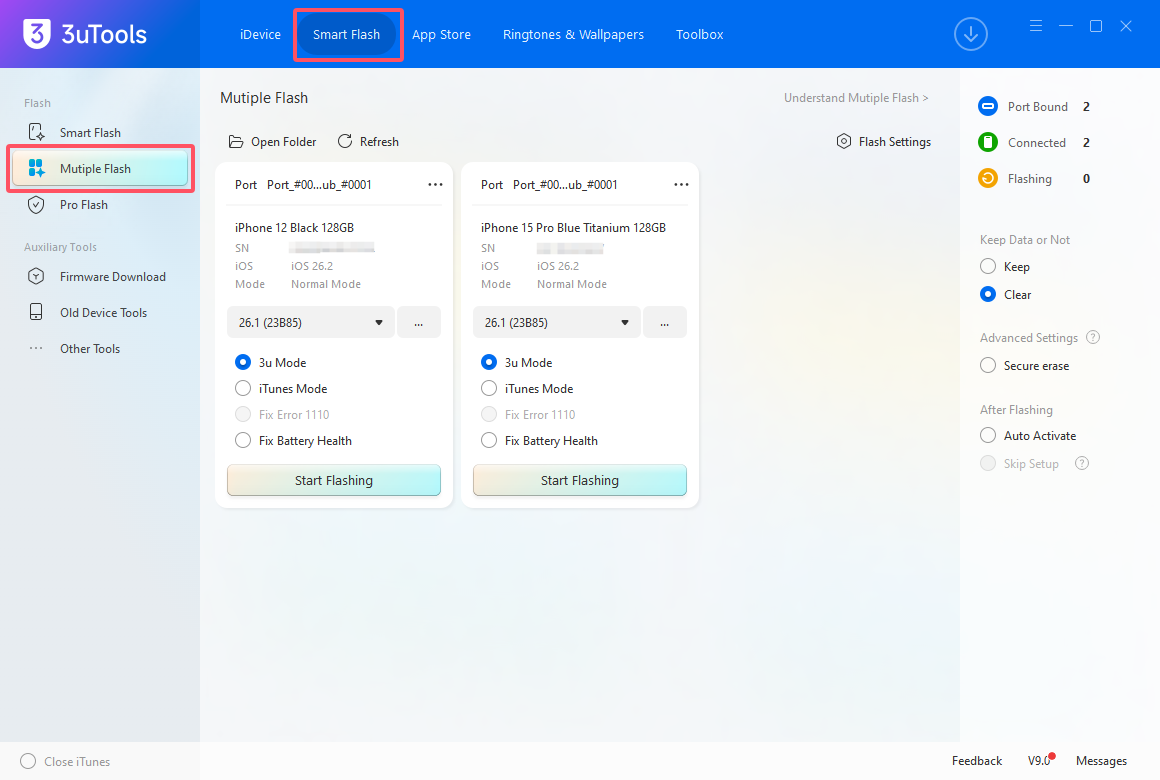
2. Each port can independently perform flashing operations. Flashing status and options on one port do not affect other ports, allowing simultaneous flashing on multiple devices.
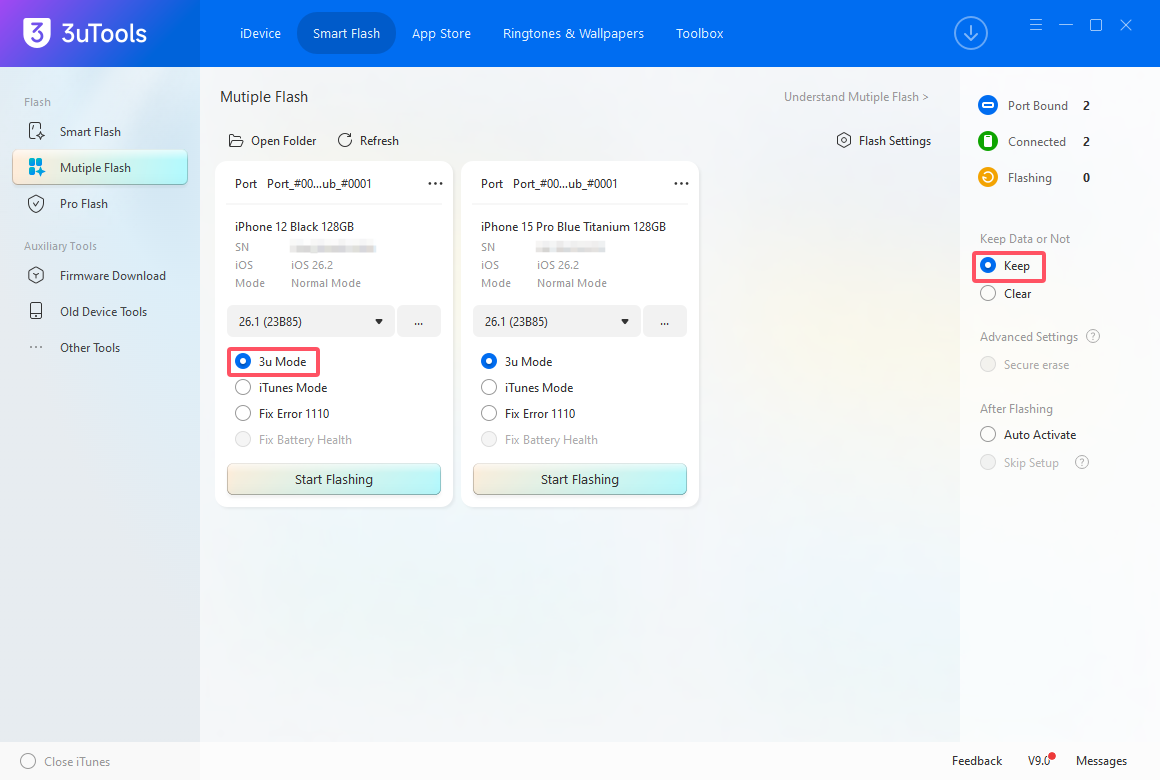
3. After selecting the iOS firmware, check “Keep or clear” for flashing based on your needs. You may also choose “Secure erase” flashing or “Auto Activate” upon completion. Once selections are made, flashing will begin on this port. The grayed-out section indicates the flashing progress.
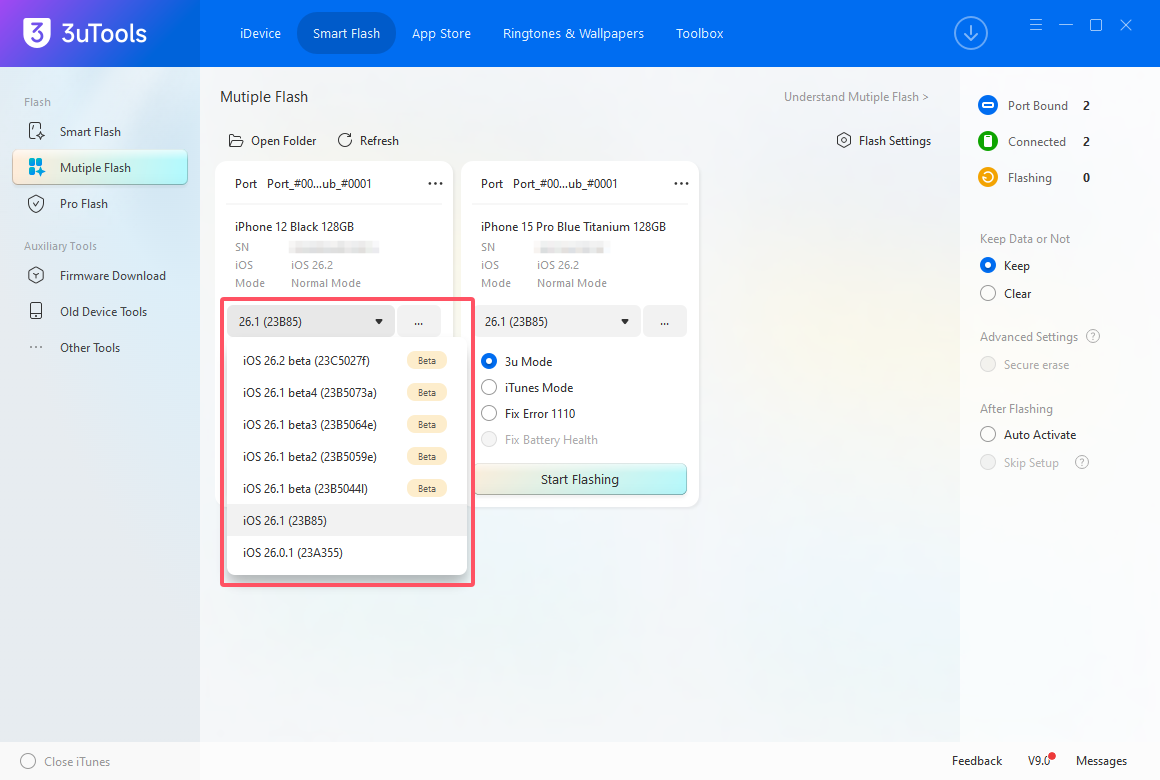
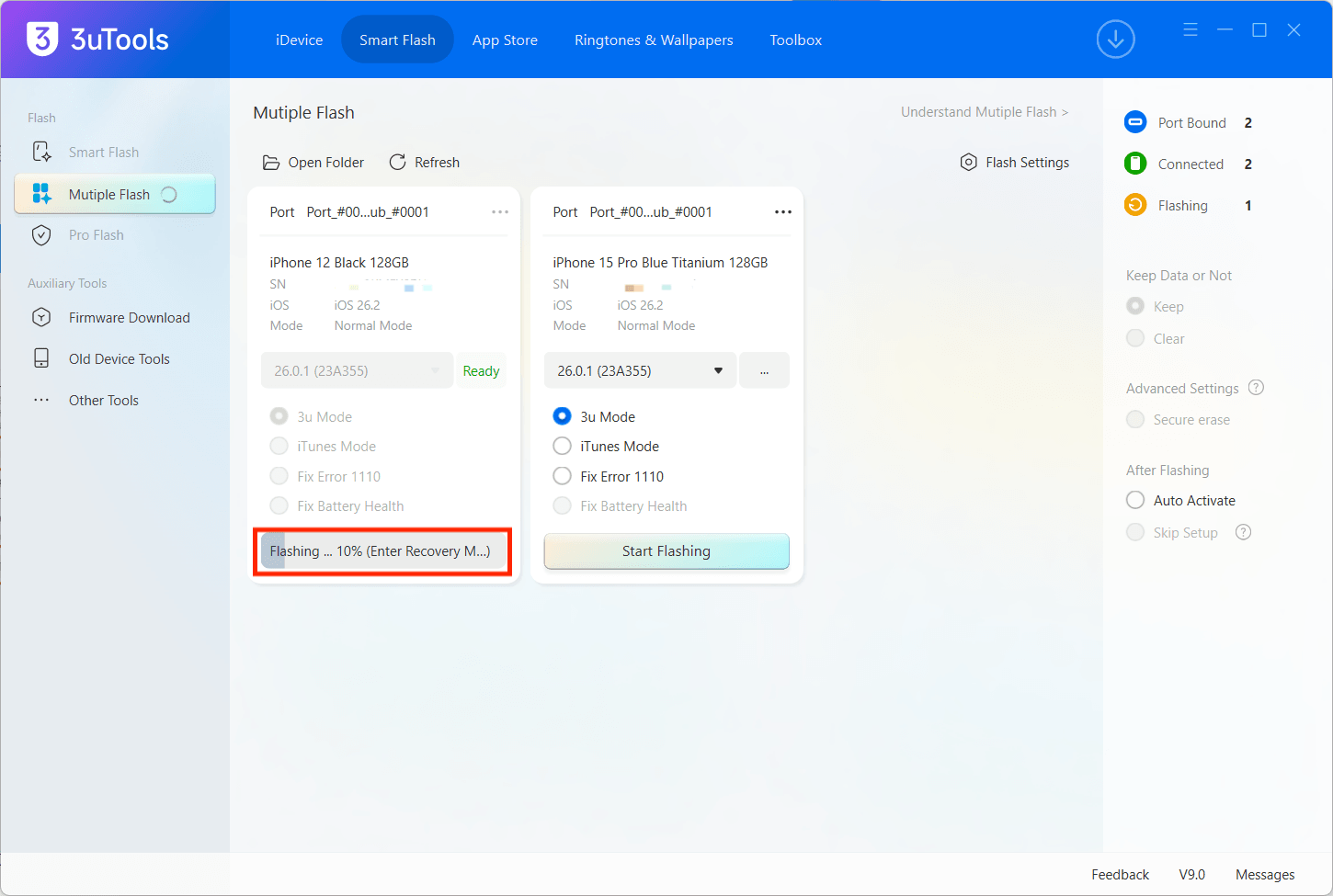
If the firmware has not been downloaded, clicking Start Flashing will automatically download the correct firmware. If the firmware is already downloaded from another source, click Import to load it manually.
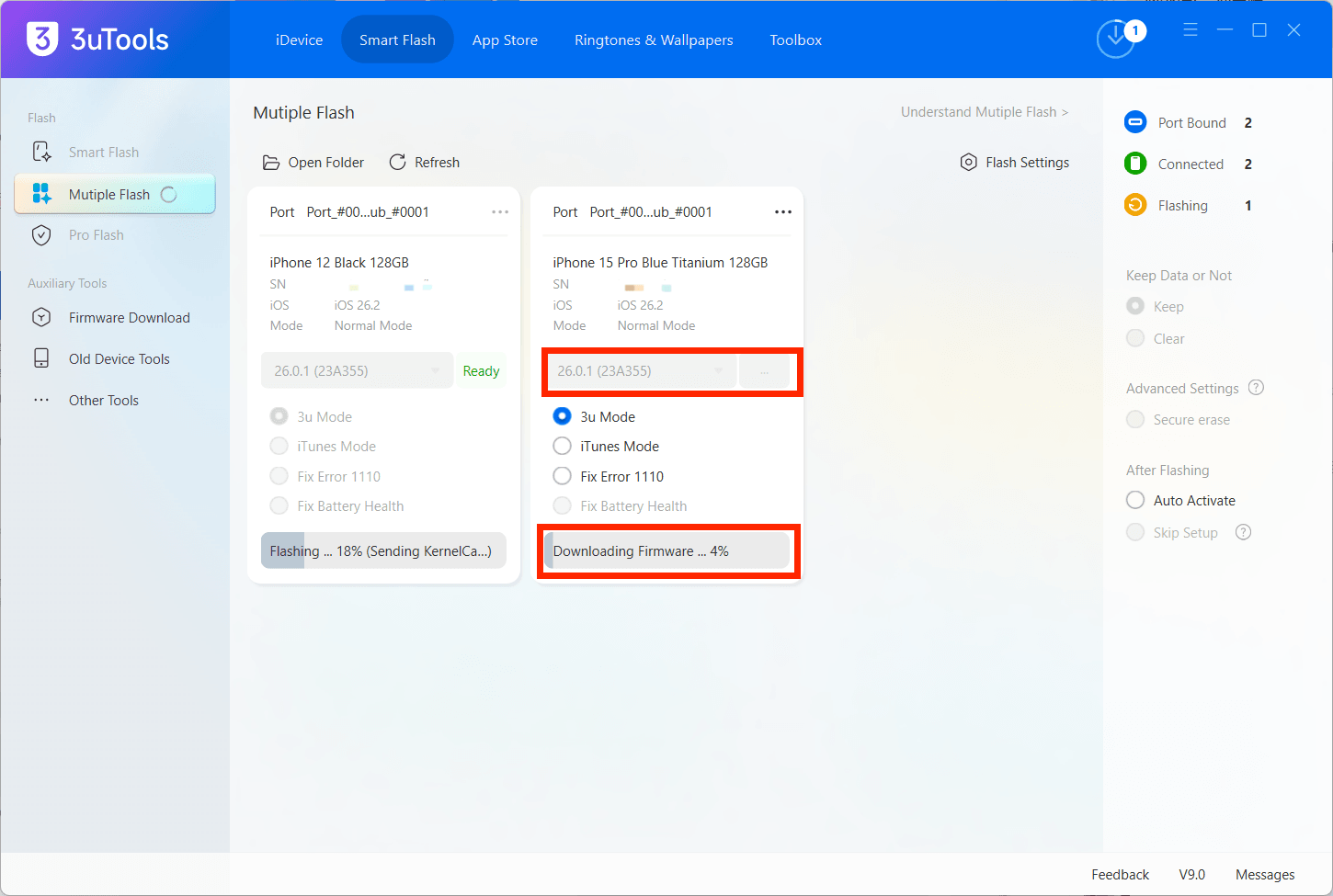
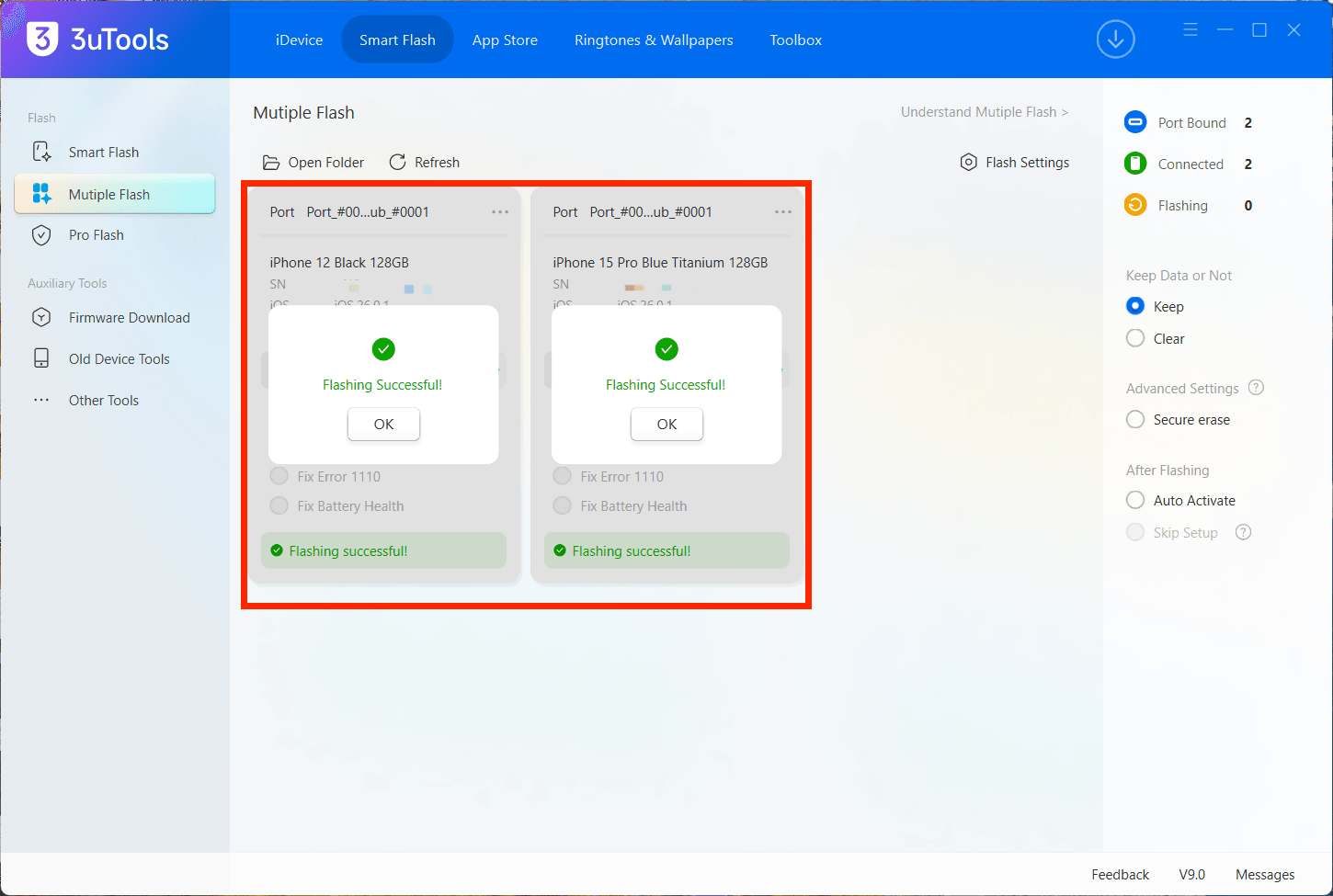
4. After flashing completes successfully, wait for the port to automatically reconnect and return to its initial state.