 TUTORIALS
How to Completely Block Cellular Data Usage on iPhone
 12/04/2023
 14026
14026
Learn how to use restriction settings on your iPhone or cellular iPad to block cellular data usage and prevent yourself or anybody else from turning on mobile data.
Most cellular plans come with unlimited data nowadays. But if you’re on a capped data plan, you can follow our handy tips to use less cellular data on your iPhone.
However, if you’re on a special plan that offers absolutely no data privileges, you can set your iPhone to block all cellular data usage. What’s better is that you can even prevent yourself from accidentally switching on cellular data, thus saving yourself from an expensive bill.
This is also useful when you hand over your iPhone to kids and are worried they may turn on cellular data from the Control Center.
Note that, alternatively, the steps below will also help if you want to keep cellular data always enabled and restrict anyone from turning it off from the iOS Lock Screen or Home Screen Control Center.
Restrict cellular data usage and changes
1) Open your iPhone Control Center and tap the green cellular icon to turn it off. Now, your phone cannot use mobile data.
2) Next, go to the Settings app and tap Screen Time.
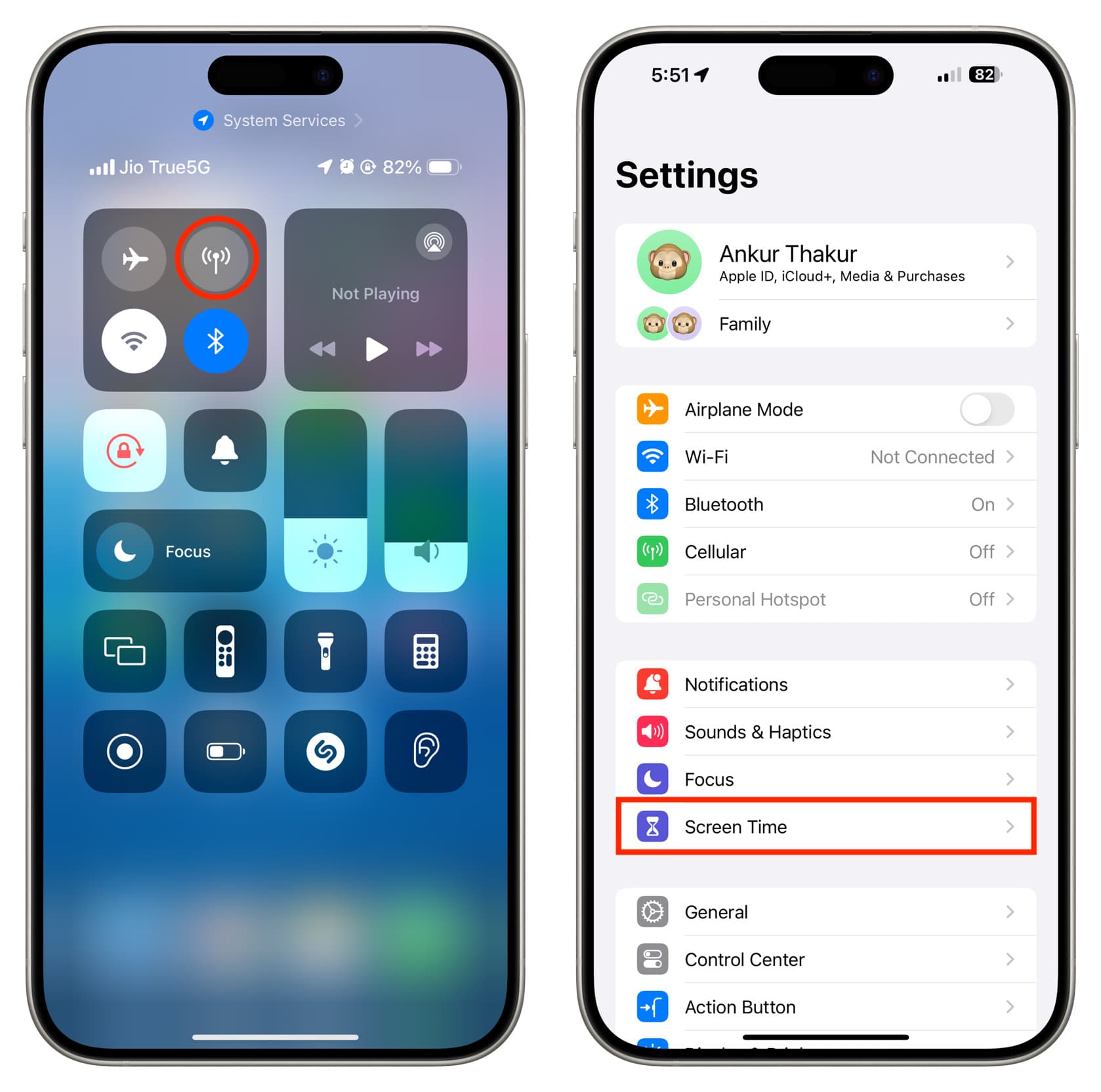
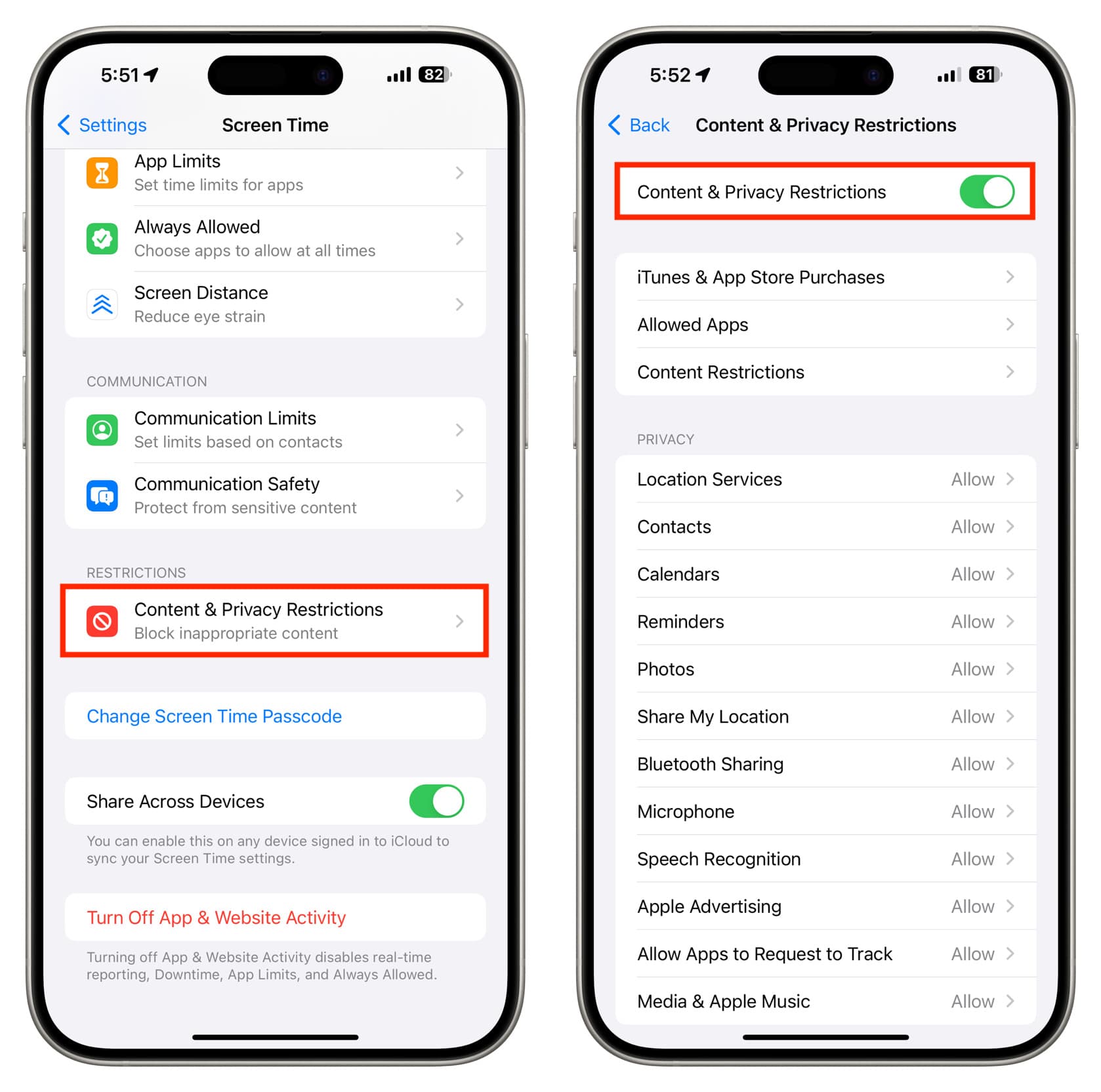
3) Tap Content & Privacy Restrictions.
4) Turn on Content & Privacy Restrictions on the next screen if it’s off, and then scroll down to the bottom of this screen.
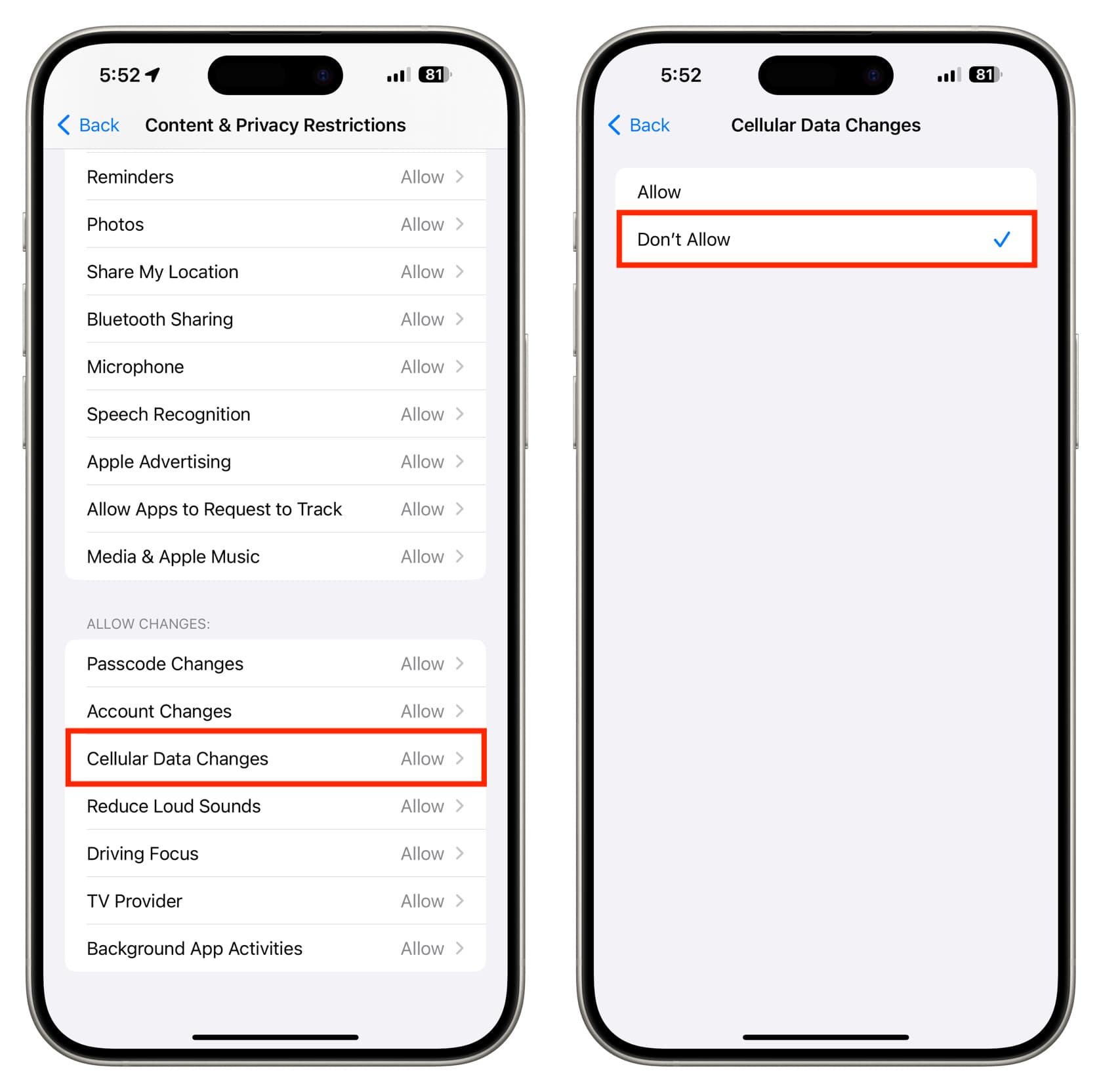
5) Tap Cellular Data Changes and enter your Screen Time passcode if asked.
6) Select Don’t Allow and exit the settings app.
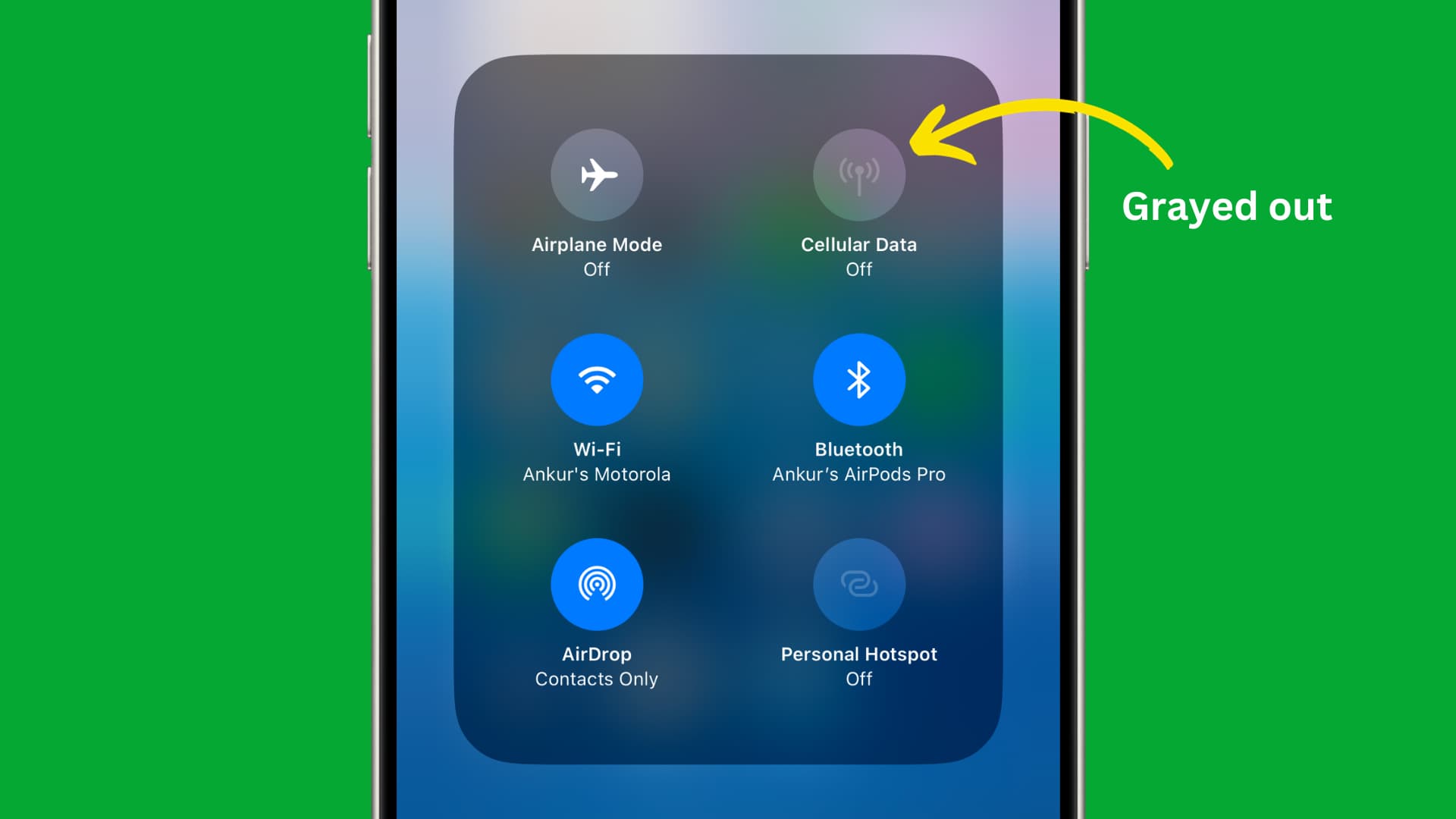
Now, wait for about 15 seconds, then lock and unlock your iPhone. Next, go to the iOS Control Center, and you will notice that the cellular data button is grayed out, and you cannot tap to activate it. As a result, you cannot switch on mobile data accidentally or even if you tried to.
Basically, the iOS restriction settings are not allowing further changes to cellular data settings. So, if mobile data was off, it will remain off, and if it was on, it will remain switched on.
Turn off cellular data restrictions
If you no longer want to have these restrictions in place, go back to iPhone Settings > Screen Time > Content & Privacy Restrictions > Cellular Data Changes and tap Allow.
After this, you can once again make changes to cellular data settings on your iPhone. You can turn it on and off as you please.
Source: iDB










