TUTORIALS
The Public iOS 16.6.1 Is Now on 3uTools
 09/11/2023
 17173
17173
Less than a week until Apple's iPhone 15 event, Apple has released what is likely close to its last updates to iOS 16.6, macOS Ventura 13.5, and watchOS 9.6 to patch some actively exploited security problems.
The iOS 16.6.1 and iPadOS updates sport build number 20G81. The previous build of Apple's mobile operating systems was built in 20G75. MacOS Ventura has build number 22G91, and watchOS 9.6.3 has build number 20U90.
And This iOS 16.6.1 is now available on 3uTools. Here are a few steps to install it on your device.
Tips:
1. After upgrading your device to iOS 16.6.1, you can't downgrade to an iOS version that "Apple has stopped signing", even if you have backed up your SHSH with 3uTools.
2. After upgrading your device to iOS 16.6.1, if you want to downgrade to another version "Apple hasn't stopped signing", it is not recommended to check the box "Retain User's Data", as it may fail or the device may be abnormal after successful flashing. Customized Backup data is recommended before downgrade. Then select "Quick Flash Mode" after customized backup. You can Customize Restore the data after successful flashing.
Step 1 Connect your iDevice to your PC with an original USB cable and launch 3uTools.
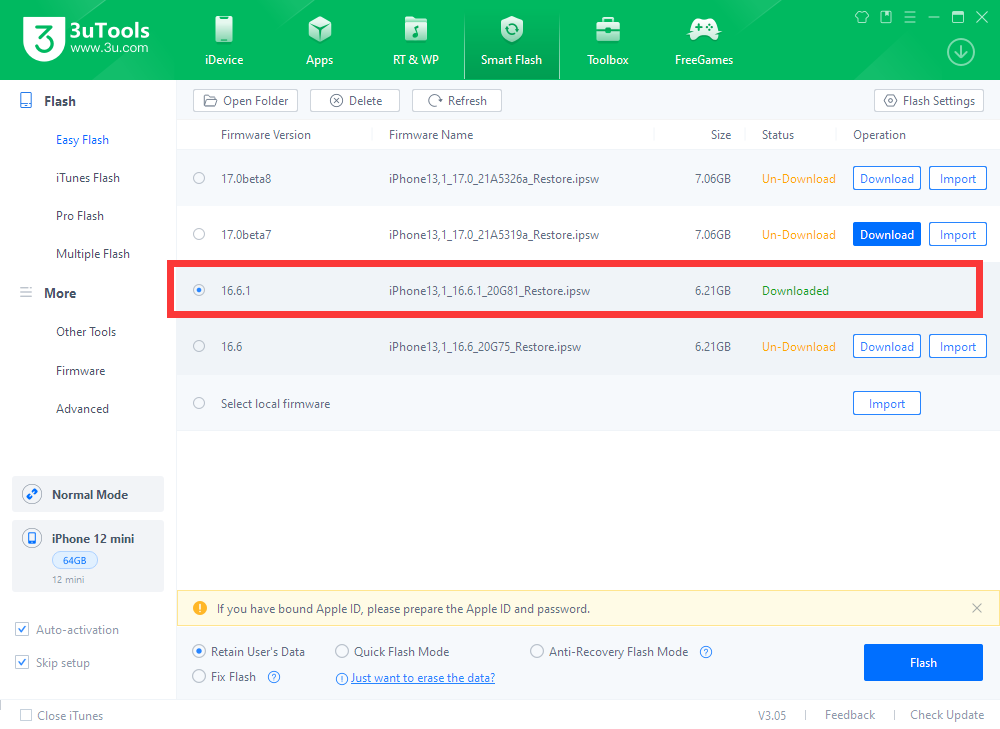
Step 2 Go to Smart Flash > Easy Flash, and select firmware iOS 16.6.1. If you want to update with data, please check the box "Retain User's Data". There will be a pop reminder after you click "Flash", please read it with caution.
You are recommended to back up your iDevice regularly in case of data loss.
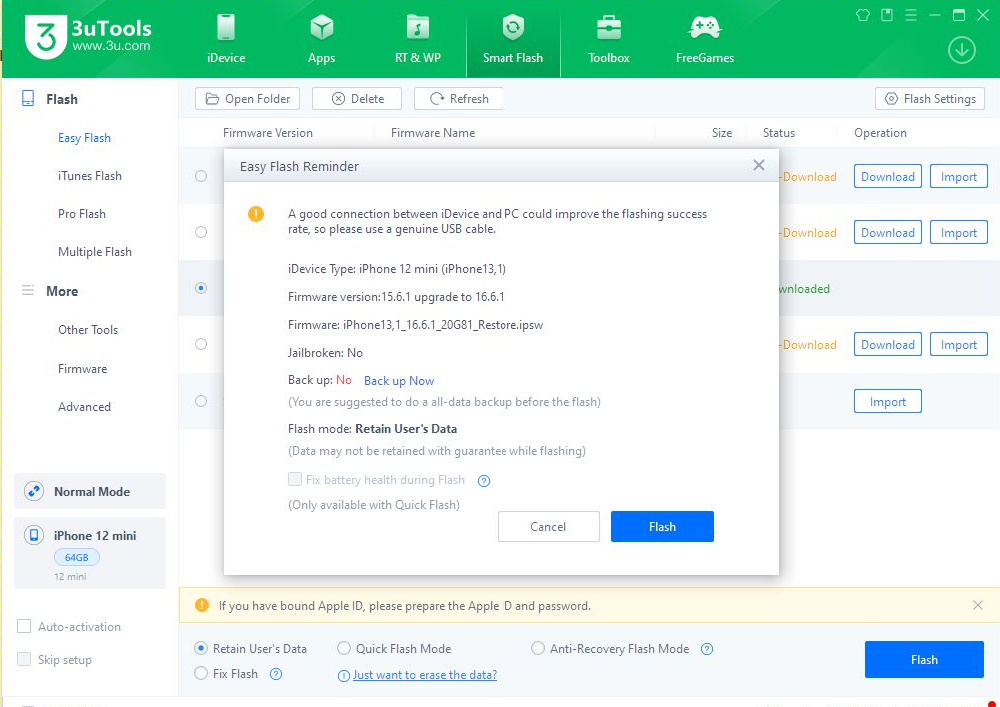
Step 3 Keep the stabilization of network and USB connection while flashing, wait patiently for around 5 to 10 minutes. Your iDevice will be updated to iOS 16.6.1 after reboot.
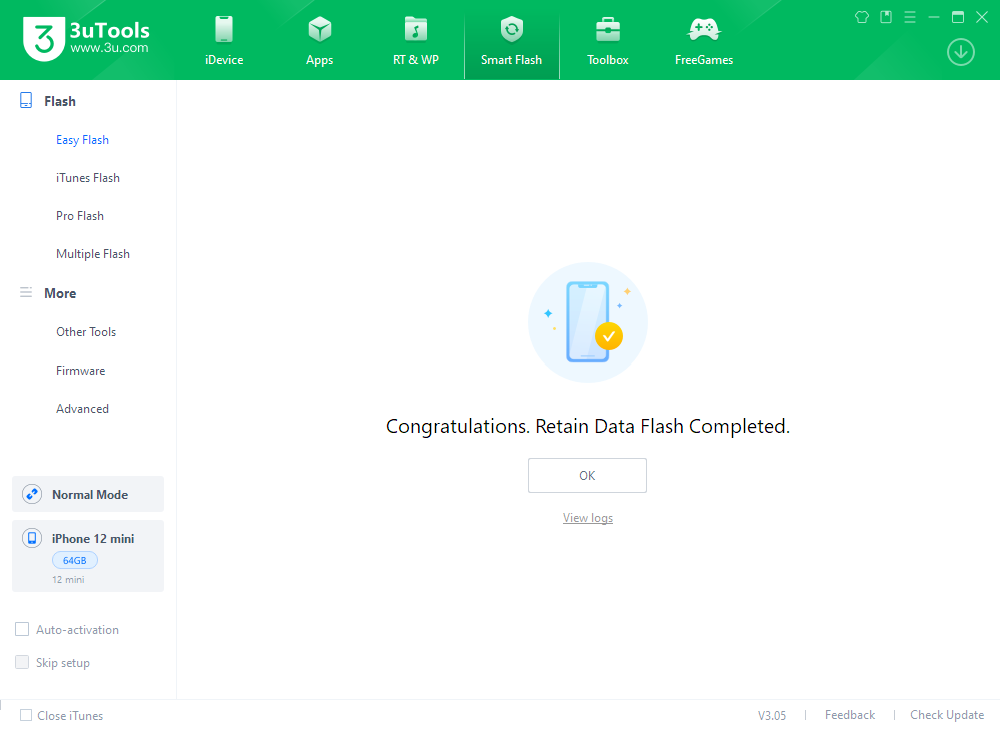
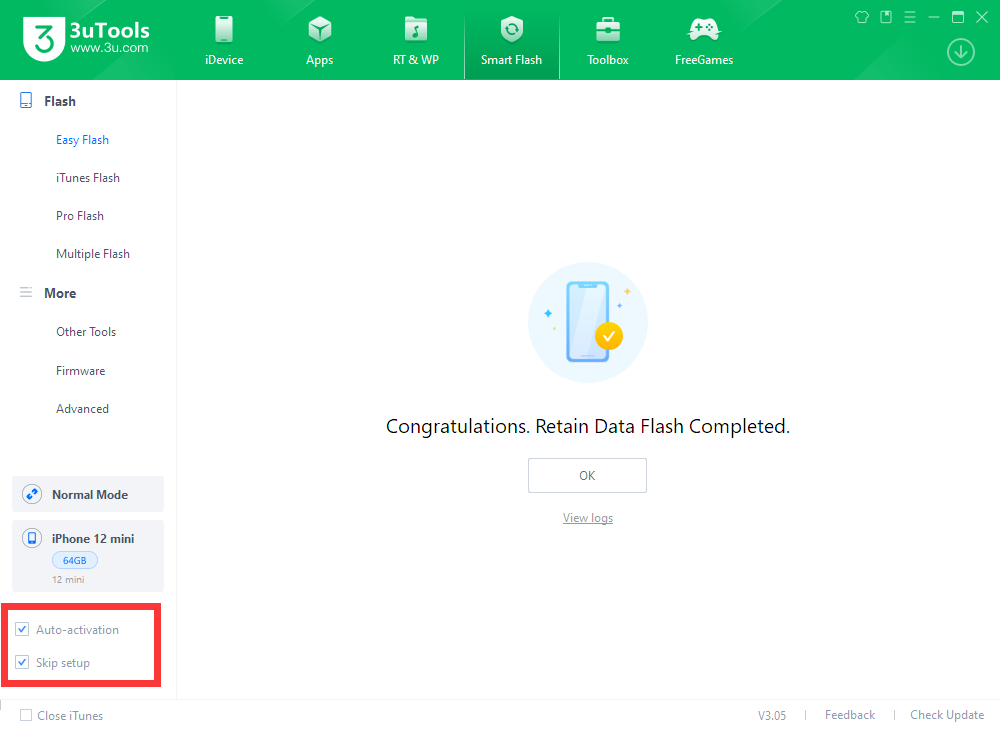
Step 4 After the iDevice is turned on, tap "Auto activation", "Skip setup". You can also manually activate the iDevice, if it is a Retain User's Data flash, you do not need to activate it.