 TUTORIALS
How to Wipe your iPhone Before Selling it?
 07/27/2018
 10320
10320
Make sure you remove all your personal information before you sell or trade your #iPhone in because if you don't, the consequences can be creepy and dangerous
That wiping part is simple: it's the backing up first that takes a bit more thought. You can backup your iPhone either to iCloud or by physically plugging it into your Mac and telling iTunes to perform a complete backup.
Unfortunately, there are advantages and disadvantages to both. Backing up to iCloud is quicker. It's also very handy when you get your new device and everything can rapidly be restored onto it.
However, an iCloud backup isn't complete. It's intended to safeguard what Apple thinks is your most important data, such as your photos, your account settings, documents and so on. It does not back up your apps. The logic is that you can always get those again from the App Store but sometimes you can't and always you have to re-enter your login details.
So backup via 3uTools. Plug your iPhone into your PC, back up on 3uTools, and let it take all the time it likes to copy everything over.
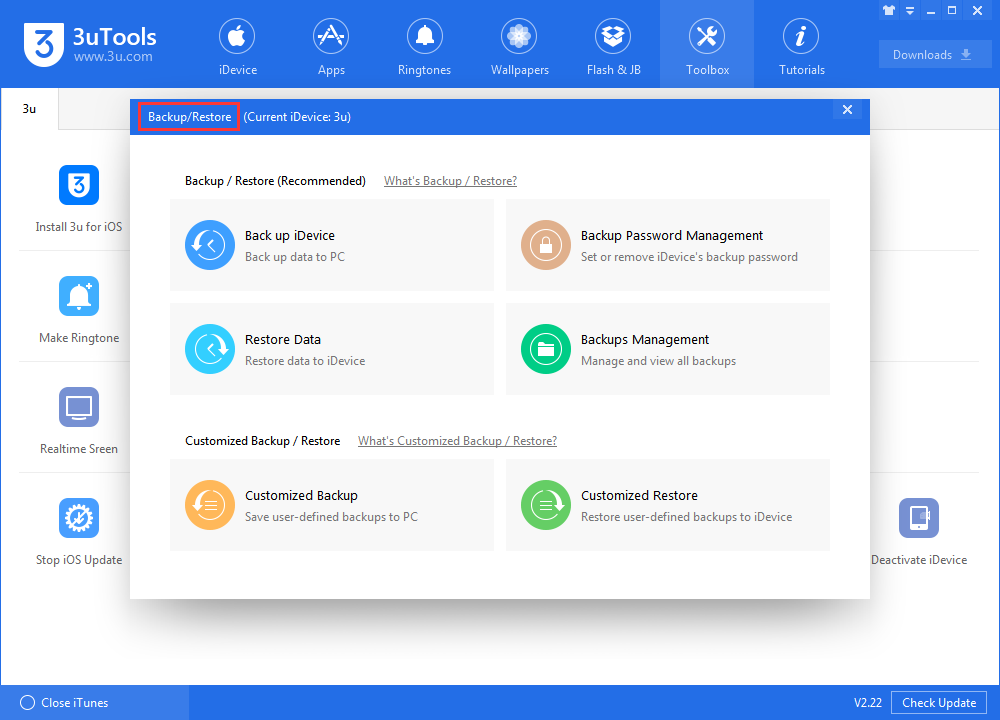
If you want you can also do an iCloud backup for convenience and speed.
Finally, when you're sure it's all backed up, go wipe the phone.
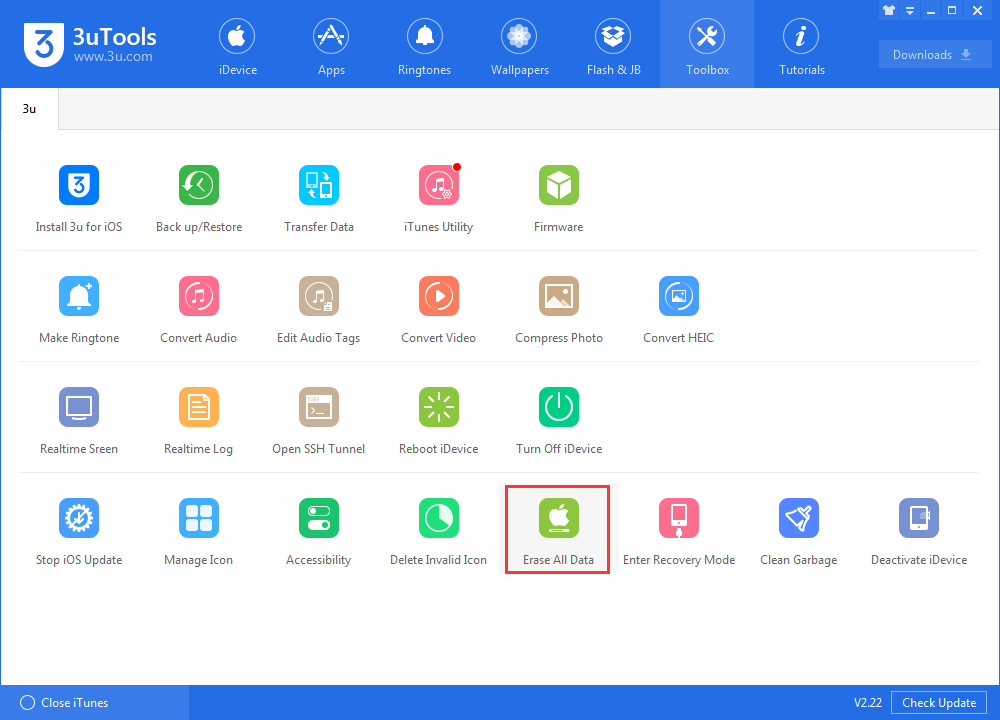
If you want to operate on your iPhone:
Open Settings on your iPhone, sign out of iCloud, iTunes, Apple Music and the App Store.
Then go to Settings and choose General, Reset, Erase All Content and Settings.
Naturally, your iPhone isn't going to just shrug and let you do all of that. it will ask if you're sure, it will ask for your Apple ID and password if it needs to switch off Find My iPhone. Soon, though, you reach the last Erase button.









